Field notes
The millennial holiday tech support guide
· 6 min read
Tech Support · Security · 1Password · Cloudflare · Gmail · AI Tools
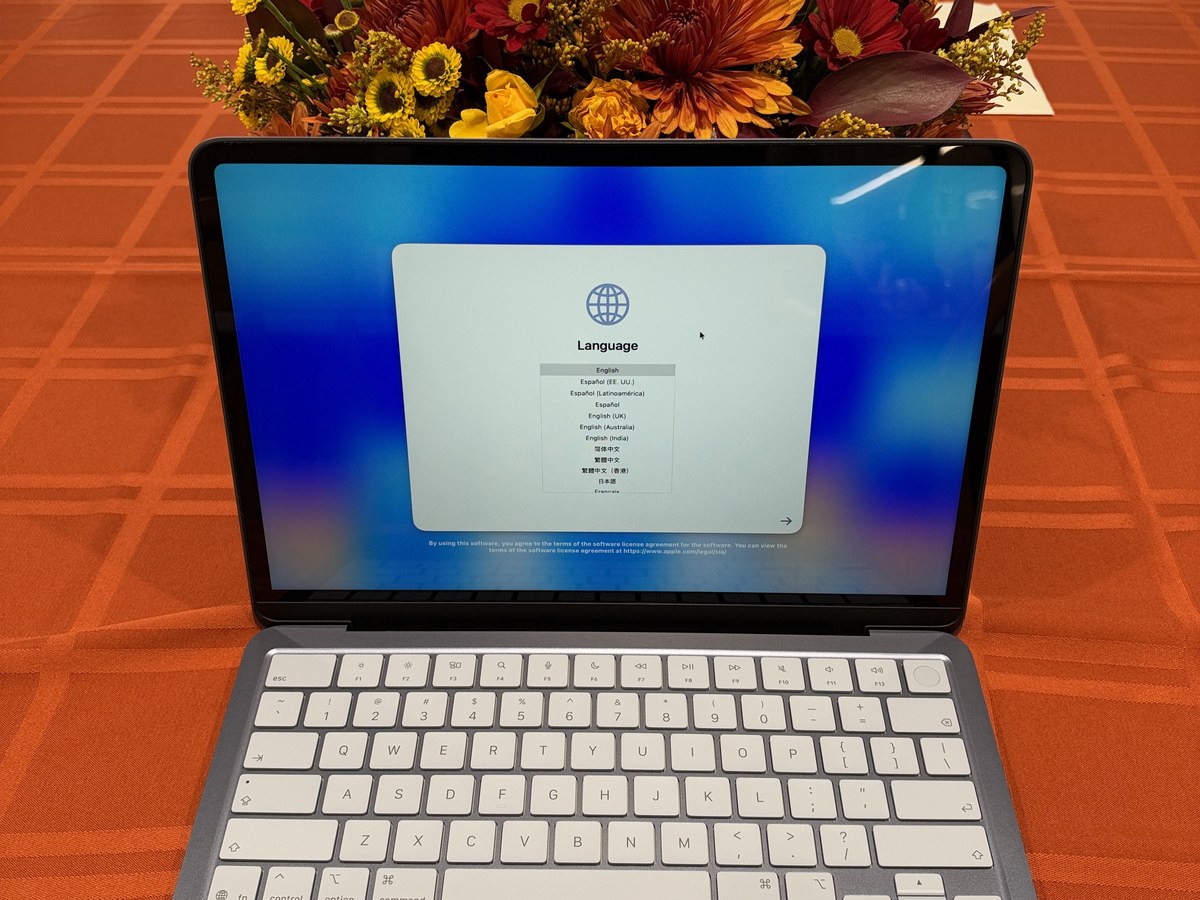
If you're a millennial going home for Thanksgiving or holiday break, you're already the unofficial tech support for your parents, aunts, and uncles. When I visit my own parents, I run through the same checklist so their phones, laptops, home network, email, and AI apps are in better shape when I leave.
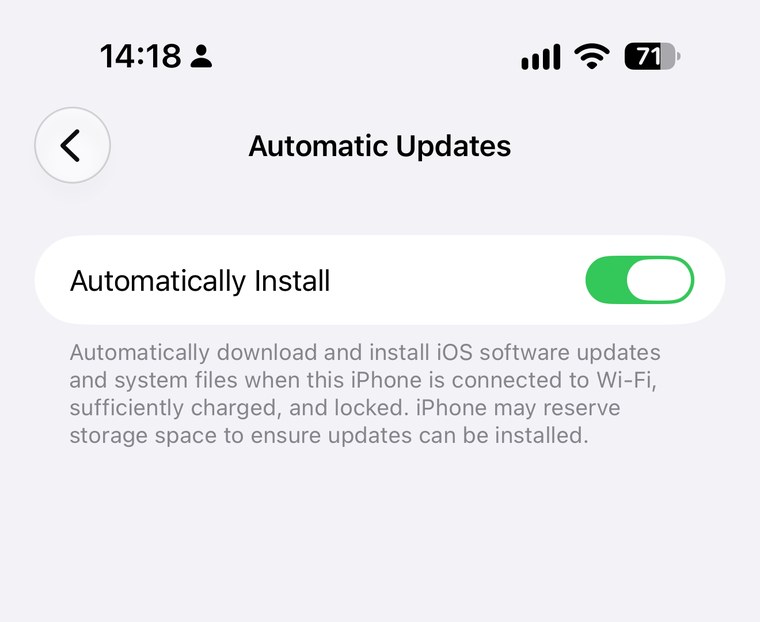
1. Update their software and turn on auto-updates
Start with the quick win. Check the operating system on their computer first and install the latest release and security updates. Next, check their phones and tablets, then log into their home router for firmware updates. Finish with whichever browser they use every day, usually Chrome or Safari.
While you're in each settings screen, turn on automatic OS and security updates overnight while the device is plugged into power so they don't have to do it manually later.
2. Put every password into one password manager
If you only finish one item on this list over break, make it this one.
Pick the tool based on what devices the household actually owns:
- Apple Passwords is free and supports shared family lists. It works fine if everyone is on iPhone, iPad, and Mac. The catch is that it's painful on Windows, Linux, and Android, so skip it for mixed households.
- Bitwarden is free and runs everywhere, though it isn't very user-friendly for low-tech Gen X or Boomer relatives who just want autofill to work.
- 1Password Family is what I use. It's easy to onboard family members and walk them through it, and if you're on the plan too, it's agent-friendly and has a CLI.
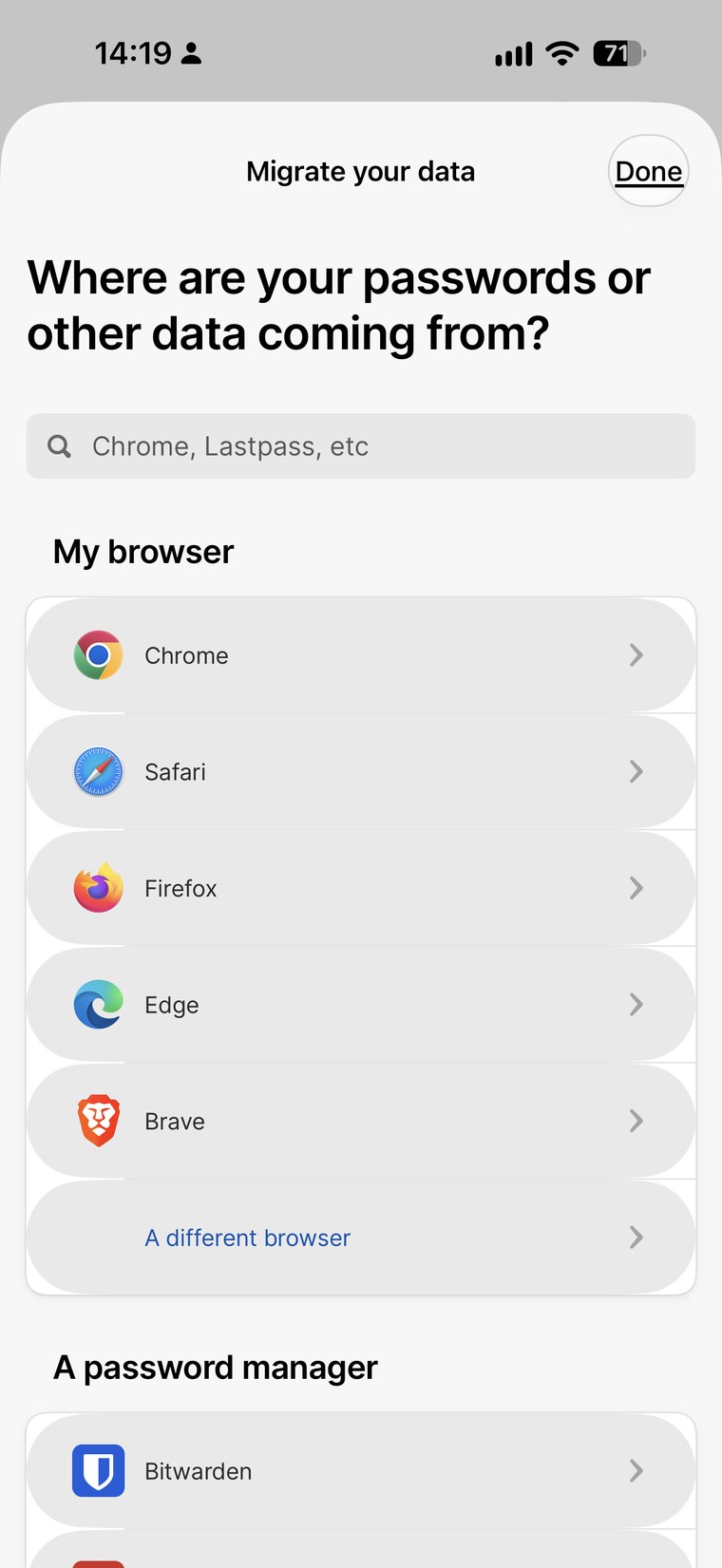
Once you pick a tool, track down where their passwords live right now. When I did this with my parents, their logins were split across Chrome (Google Password Manager), the default password app on their phone, Apple Notes, Google Docs, and a little handwritten notebook.
Export the browser and phone logins to CSV files, import them into the new password manager (1Password handles CSV imports cleanly), and type in anything from notes or paper. Delete every CSV file from the computer and empty the Trash right after so a plain file of their logins isn't left sitting in Downloads.
3. Clean up reused passwords and turn on passkeys
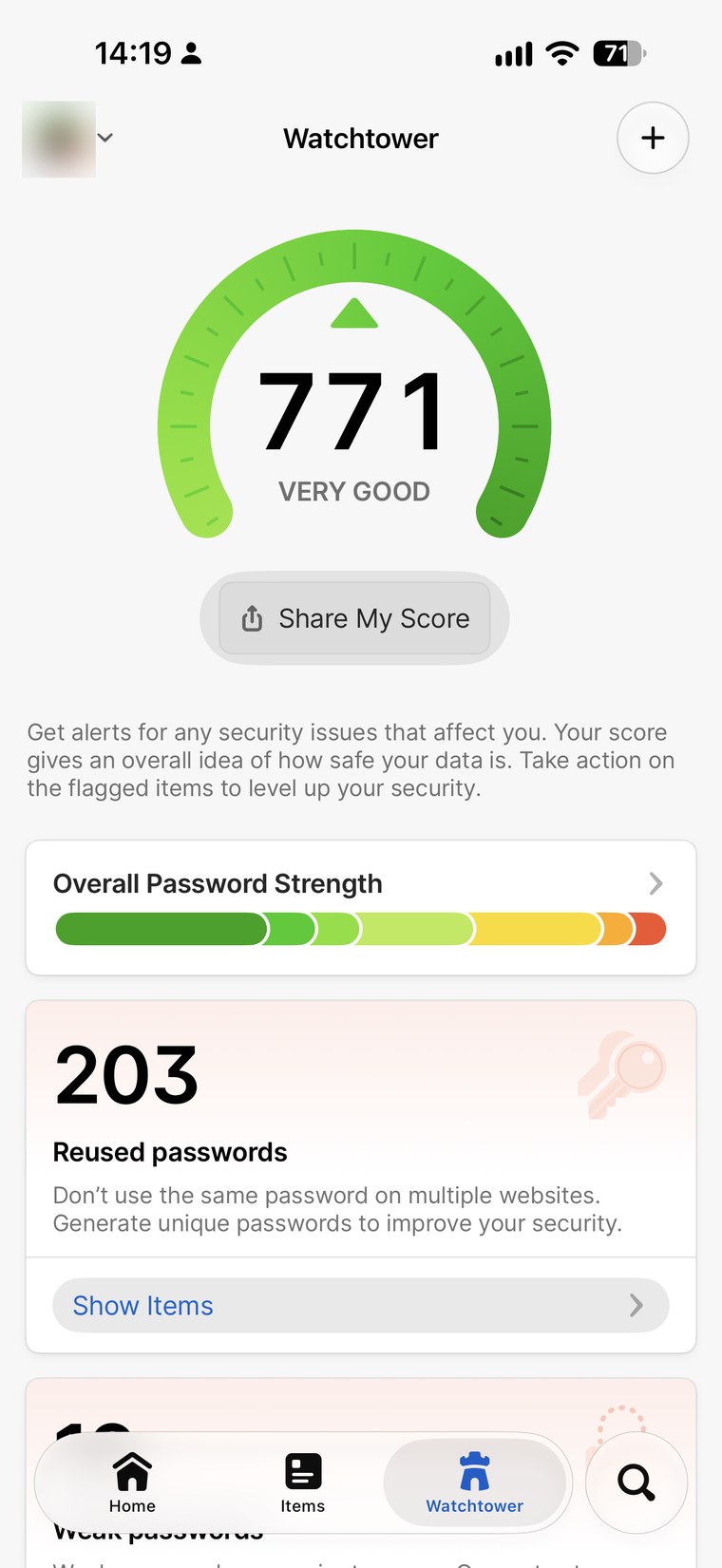
With everything in one vault, open the password alerts or Watchtower view and replace reused and exposed passwords. Most parents have one main password they've used across a bunch of services.
Good luck convincing your Boomer parents to use passwords they can't remember. With 1Password or Apple Passwords, they only memorize one master password, and Face ID or their fingerprint unlocks the rest.
While you're in their main accounts, turn on passkeys for the logins that can wreck their week if someone breaks in: their email inbox (like Google), social media (like Facebook), and their bank.
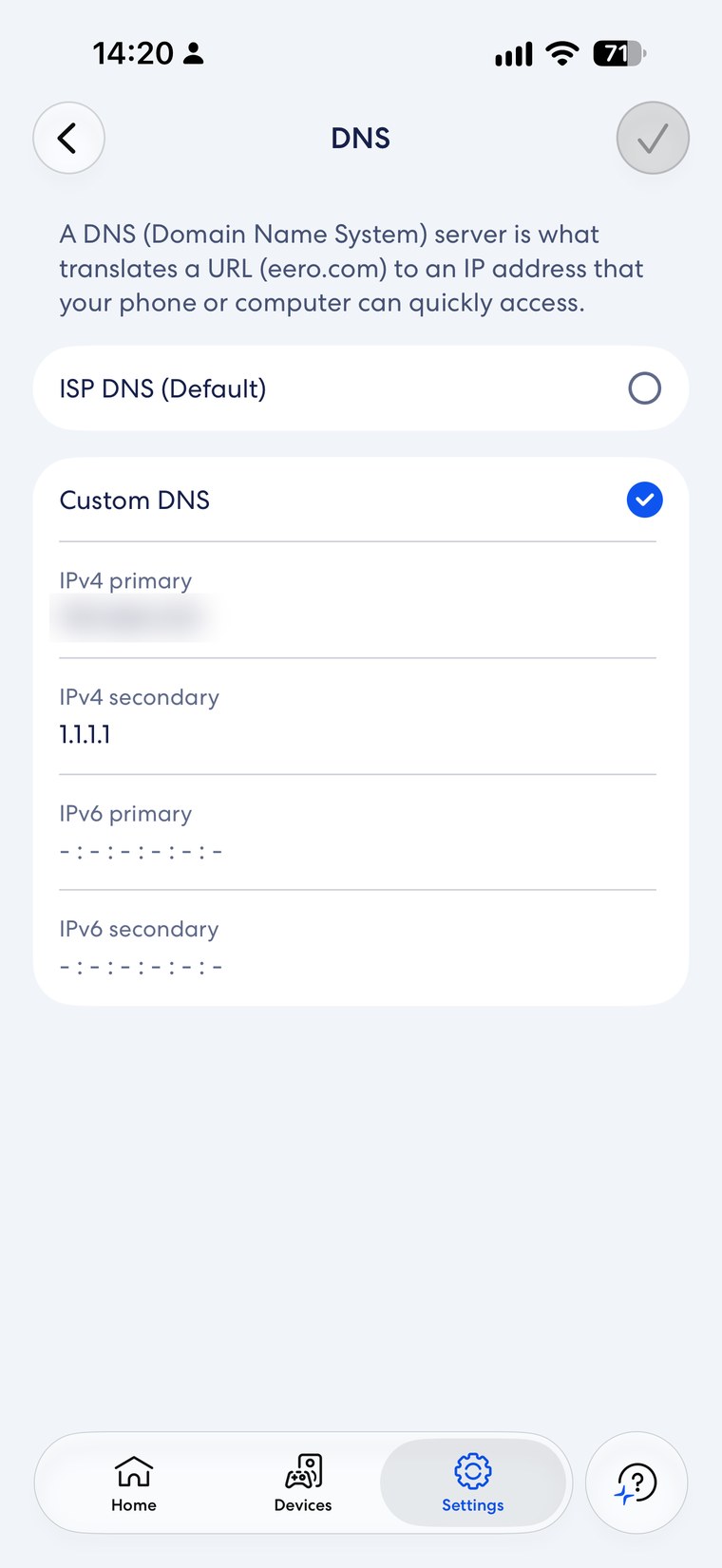
4. Point their home router at Cloudflare family DNS
Changing the DNS servers on their home router takes five minutes and covers every phone, laptop, and tablet on their Wi-Fi without touching each device.
Log into the router settings and set the DNS addresses to Cloudflare's filtering resolvers:
- 1.1.1.2 (secondary 1.0.0.2) blocks known malware and phishing sites.
- 1.1.1.3 (secondary 1.0.0.3) blocks malware, phishing, and adult content.
Cloudflare's standard 1.1.1.1 address does not filter malware or scams, so check that the last digit is 2 or 3. I put this on my parents' router after some of their Boomer friends got sucked into phishing emails. If someone clicks a known malicious link from an email or text, Cloudflare blocks the page before it opens.
5. Clean up their Gmail inbox
Most families are on Gmail, and most of those inboxes look like a fire hose.
Open Manage subscriptions in Gmail's left sidebar. It sorts senders by how many emails they've sent recently, so you can mass-unsubscribe in a couple of minutes instead of opening individual messages, scrolling to the footer, and clicking through a bunch of websites.
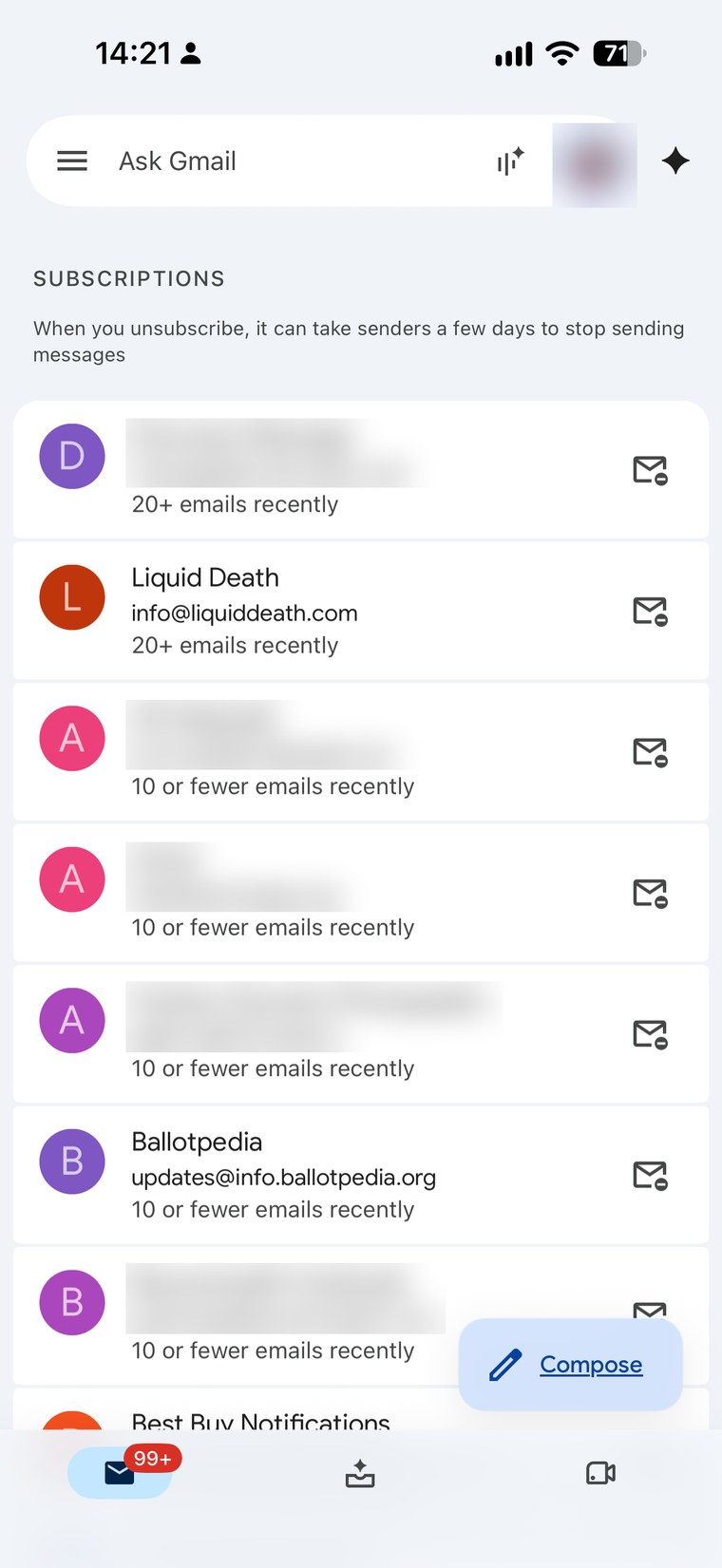
Set up filters and labels for mail they want to keep searchable without seeing every day. I filter those messages to Skip the Inbox (Archive it) so they stay searchable when I want them without cluttering the primary inbox.
If they use iCloud, turn on Hide My Email and show them how masked addresses work. Messages still arrive in their normal inbox, and they stop giving their real address to every newsletter, downloadable PDF, and free app they sign up for.
6. Clear out local storage and unused apps
Parents' phones and computers are usually running low on disk space.
Help them decide what has to live locally on the device versus what can sit in cloud storage, and show them how to check storage and clear local space once in a while. Then go through the apps on their phone and computer together and delete the ones they never open, especially anything they can just as easily use in a browser.
7. Tune up their AI apps
Older family members are usually using a free ChatGPT, Meta Muse, or Gemini account rather than paying for a subscription.
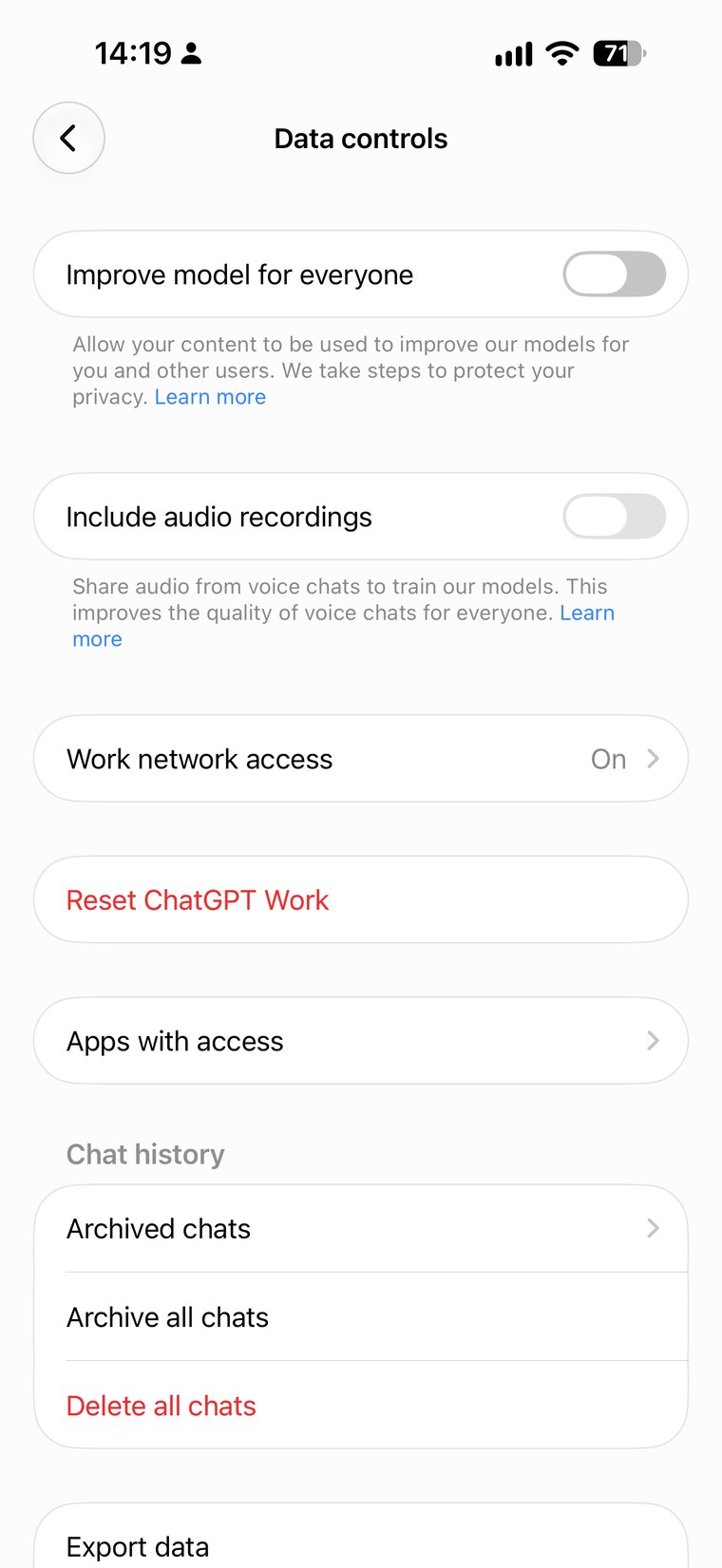
Start by turning off model training in their data controls, since free plans default it on. If the platform they use won't let free users opt out, talk through whether the lowest paid tier is worth it for data control, higher usage limits, and better paid models.
Next, show them project folders. Most people end up with one long pile of chat threads, and grouping them into folders makes it way easier to keep track of what they're using the tool for.
Finally, show them connectors like Gmail, Google Drive, and Google Calendar. Most family members only use AI to chat back and forth, and hooking up their calendar or Drive lets them do more with it.
If you're also sorting out which paid tools are worth keeping in your own stack, see what software is worth paying for and the best AI subscription at $0, $20, $100, and $200 a month. I'm putting together a separate breakdown of passwords vs. passkeys vs. authenticator codes and YubiKeys next...
Follow me on X at @theaaron.